
Time modules
Switch something on according to the time, the day or a specific date, or produce an ON/OFF cycle: the three modules of the Time family in the catalog.
Before you start: the clock
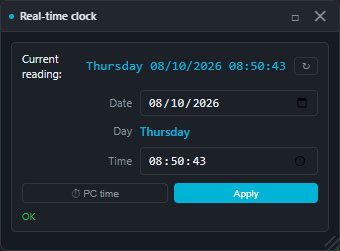
Time window and Calendar read the OmniBox real-time clock. Set it with the Clock button in the toolbar. As long as the clock cannot be read, their output stays at 0. The Timer does not need the clock.
Time window
Time
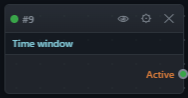
A recurring time window. The Active output goes to 1 when all three conditions are met: the month is ticked, the day of the week is ticked, and the time is within the range. It drops back to 0 outside. Example: Monday to Friday, 08:00 to 18:30, except in August.
Ports
| Port | Type | Role |
|---|---|---|
| Active | Boolean | At 1 for the whole programmed window, at 0 outside it. Stays at 0 as long as the clock cannot be read. |
Settings
A single setting, Calendar, on three rows:
| Setting | Values | Effect |
|---|---|---|
| Months | 12 boxes J F M A M J J A S O N D — default: all ticked | Months in which the window applies. The ⇄ button ticks or unticks them all. |
| Days | 7 boxes M T W T F S S (Monday → Sunday) — default: all ticked | Days of the week on which the window applies. ⇄ button: all / none. |
| Range | start time → end time, to the minute — default 00:00 → 23:59 | Time slot. The end minute is included: 08:00 → 18:30 stays active until 18:30:59. |
If the end is before the start, the range wraps past midnight: 22:00 → 06:00 is active overnight. The day of the week tested is that of the present moment: after midnight, it is therefore the next day that must be ticked.
On the block
- No badge.
- Status light green during the window, grey outside it, and also grey when the clock cannot be read.
- Active dot green when the output is 1.
Timer
Time
An ON/OFF cycle: the output stays at 1 for the ON time, then at 0 for the OFF time, and so on. The times can be set from one millisecond to nearly 1,000 hours. The Timer keeps time itself, without the clock.
Ports
| Port | Type | Role |
|---|---|---|
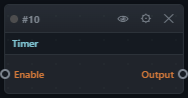
| Enable | Boolean | Allows the cycle as long as it is at 1. Each change to 1 restarts the cycle from the Start state, for a full phase. At 0: cycle stopped, output at 0. Unpatched: the Timer runs continuously from startup. |
| Output | Boolean | Alternates between 1 and 0 according to the times. State held for the whole phase, not a pulse. |
Settings
| Setting | Values | Effect |
|---|---|---|
| ON time | h, min, s, ms (from 1 ms to 999 h 59 min 59 s 999 ms) — default 5 s | Length of the phase at 1. |
| OFF time | same — default 5 s | Length of the phase at 0. |
| Start | At ON, At OFF — At OFF when the block is created | State of the output on each activation and at startup. Changing it while the Timer is running immediately restarts the cycle from the new state. |
On the block
- No badge.
- Status light green during the phase at 1, grey during the phase at 0 and when the Timer is stopped.
- Output dot green when the output is 1.
Example: stairwell timer
A press on a keypad key switches the light on for a fixed time, then everything goes off and the key turns itself off again.
- In the Keypad configuration, set key 1 to Switch and tick its State input box: the block gains a State 1 input.
- Add a Timer. Set Start to At ON and the ON time to the lighting time you want.
- Connect the Key 1 output to the Timer's Enable input, then the Timer's Output to the keypad's State 1 input.
- Also wire the Timer's Output to whatever controls the lighting.
Press: the key lights up and enables the Timer, whose output goes to 1 straight away. At the end of the ON time, the output drops back to 0; this falling edge turns the key off, which disables the Timer. A new press while the light is on turns the key off and cuts everything at once.
Calendar
Time
A dated event: the Active output goes to 1 at the set date and time, stays at 1 for the duration, then drops back to 0. Once only, or every year on the same date. An event can run over into the next day, month or year.
Ports
| Port | Type | Role |
|---|---|---|
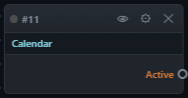
| Active | Boolean | At 1 during the event, at 0 otherwise. Stays at 0 as long as the clock cannot be read. |
Settings
| Setting | Values | Effect |
|---|---|---|
| Date | from 01/01/2000 to 31/12/2099 — default: 1st January of the current year | Start day. With "Every year", the year is ignored: only the day and month count. |
| Start time | 00:00 – 23:59, default 00:00 | Start time, to the minute. |
| Duration | h, min, s (from 1 s to 999 h 59 min 59 s) — default 1 h | How long the output stays at 1. |
| Repeat | Once, Every year — default Once | Every year: a 29 February is skipped in non-leap years. |
The module judges the state at every moment, not from a single start. If you set it while already inside the window, the event switches on straight away. After a power cut during the event, it comes back on by itself for the remaining time.
On the block
- No badge.
- Status light green during the event, grey outside it.
- Orange when the clock cannot be read.
- Red when the date is impossible: a 31 April, a 30 February, or a 29 February with "Once" in a non-leap year.
- Active dot green when the output is 1.