
Virtual modules
Buttons, faders and a DMX console drawn right inside the block: for trying out a patch with no console or keypad connected, or for keeping a few fixed settings close to hand. Virtual family in the catalogue.
How they all work
- Set in the block: values are set with the mouse on the canvas, not in the settings window. That window only holds the number of controls and, for buttons, their behaviour; the console has no settings at all.
- Saving: values are stored in the unit 2 seconds after the last change (dragging a fader only produces one save, after you let go). They come back after a restart and go with the exported project. Exception: a push button always starts released.
- Always up to date: the controls follow the unit's actual state, refreshed continuously. A setting made from another browser therefore shows up on yours too.
- These modules have no inputs. Their status light is always green.
Tutorial 1 — Connecting blocks · Tutorial 4 — Mixing and dimming
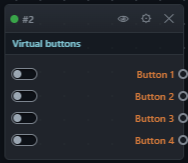
Virtual buttons
Virtual
From 1 to 8 buttons, each linked to a boolean output. Each button is either a Switch (one click turns it on, another turns it off) or a Push button (1 as long as you hold it). The buttons are drawn in the block's left-hand column, opposite the output they control.
Ports
| Port | Type | Role |
|---|---|---|
| Button 1 … Button 8 | Boolean | State of the matching button. Switch: stays put between two clicks. Push: 1 as long as the button is held down. |
Settings
| Setting | Values | Effect |
|---|---|---|
| Button count (1-8) | 1 – 8, default 4 | Number of buttons and outputs. Reducing the number deletes the links of the removed outputs. |
| Buttons | Independent, Solo (one at a time) — default Independent | Solo: only one button active at a time; turning another one on turns the previous ones off. |
| Button 1 … Button 8 | Push, Switch — default Switch | Behaviour of each button. Only the first N are used. Changing a button that is on to Push turns it off. |
Solo mode
- Switching to solo while several buttons are on: only the first one stays on.
- As soon as one of the module's outputs is wired, a button whose output is not connected to anything does nothing when clicked. With nothing wired, all buttons respond, so you can test the module on its own.
- A push button that turns switches off in solo mode still triggers a save: the switches that were turned off do not come back on at restart.
On the block
- No badge. A button that is on changes appearance; the drawing also shows whether it is a push button or a switch (tooltip on hover).
- Status light always green.
- Output dot green when the button is at 1.
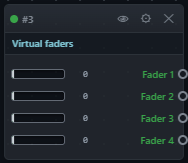
Virtual faders
Virtual
From 1 to 8 horizontal 0-255 faders, each linked to a value output. They are drawn in the block's left-hand column, each opposite its output, with its value shown as a number.
Ports
| Port | Type | Role |
|---|---|---|
| Fader 1 … Fader 8 | Value | 0-255 level of the matching fader. |
Settings
| Setting | Values | Effect |
|---|---|---|
| Fader count (1-8) | 1 – 8, default 4 | Number of faders and outputs. Reducing the number deletes the links of the removed outputs. |
Using them
- Drag the fader to set it.
- Mouse wheel: ±1; Shift + wheel: ±10.
- Double-click: toggles between 0 and 255.
- Click on the number: type a value (0-255). Enter or a click elsewhere confirms, Esc cancels.
On the block
- No badge.
- Status light always green.
- Output dot green when the fader is above 0.
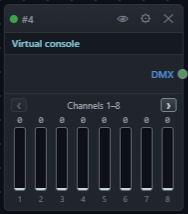
Virtual console
Virtual
A small console covering a full 512-channel DMX universe. The block shows 8 vertical faders at a time (a “slice”: channels 1–8, 9–16… up to 505–512); the ‹ › arrows change slice. Each channel keeps its level when you change slice, and all 512 levels are saved.
Ports
| Port | Type | Role |
|---|---|---|
| DMX | DMX | The full universe (512 channels) set from the block's console. |
Settings
None: the settings window says “No settings for this type.” Everything is set in the block.
Using it
- At the top of the block, the Channels caption shows the slice on display; the channel number is written under each fader.
- ‹ / ›: previous / next slice (8 channels); Shift + click: 64 channels; holding the button down scrolls.
- Each fader works like a virtual fader: drag, mouse wheel (±1, Shift ±10), double-click 0 ↔ 255, click on the number above it to type a value.
- The slice on display is remembered by the unit: it is the same in every browser.
On the block
- No badge.
- Status light always green, DMX output dot always green.